How to cancel subscription for the app?
This guide explains how to completely remove a premium Wix App Market application.
Important Pre-Requisites
- Role Requirement: You must be logged in as the primary Site Owner or an account with billing permissions.
- Billing Rule: Wix requires you to disable recurring billing before an app can be disconnected from your site.
Step 1: Initiate the App Deletion
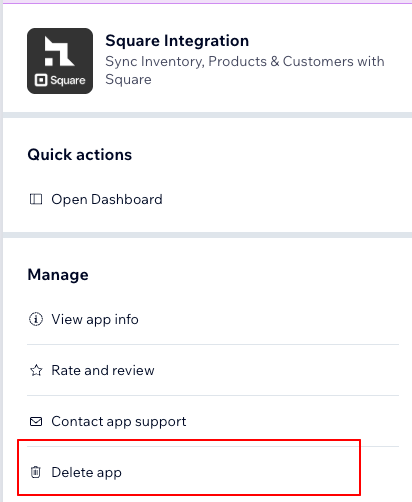
- Log into your account at Wix.com and open your site's dashboard.
- Click Apps on the left-side navigation menu, then select Manage Apps.
- Scroll down to find the application under your Installed Apps list.
- Click the More Actions (three-dot) icon on the right side of the app row and click Delete.
- The system will block the removal and display an alert stating: "You have an upgraded version of this app."
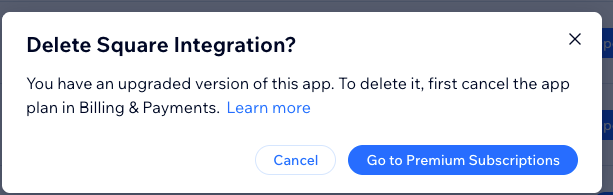
Step 2: Clear the Premium Subscription
Use the pop-up window shortcut to quickly disable the recurring plan.
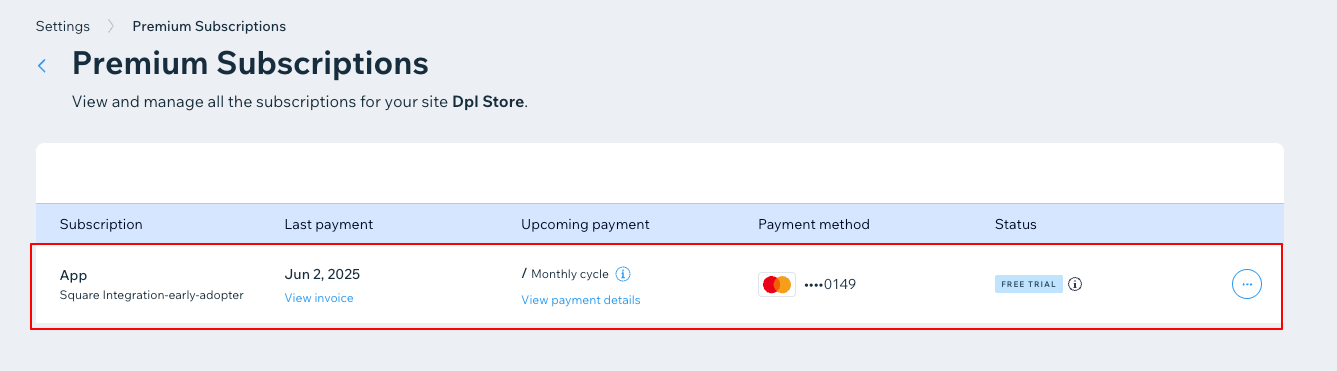
- Inside the error pop-up window, click the blue Go to Premium Subscriptions button.
- The page will redirect to your billing overview. Find the app name in your subscription list.
- Click the More Actions (three-dot) icon next to the app's billing details.
- Select Cancel App.
- Choose Cancel auto-renew and click Submit to confirm.
Note: Your premium features will technically remain active until the end of your current paid billing period, but the system block is now cleared.
Step 3: Return and Finalize Deletion
Once the subscription auto-renewal is canceled, you can immediately return to remove the files.
- Navigate back to your Wix Site Dashboard.
- Go to Apps > Manage Apps.
- Click the More Actions (three-dot) icon next to the app again.
- Click Delete.
- Select a reason for removal from the dropdown menu, then click Delete App to permanently remove it from your dashboard.